Three screens and a card. About five minutes, and you can change anything afterward from your profile.
Paying does not put you on the map.
Nothing goes in front of owners until you sign in, look your listing over, and switch your pin on yourself.
You are not signed in after paying, so the next step is always Sign in.
Every step of that, with pictures, is guide 3: Getting on the map.
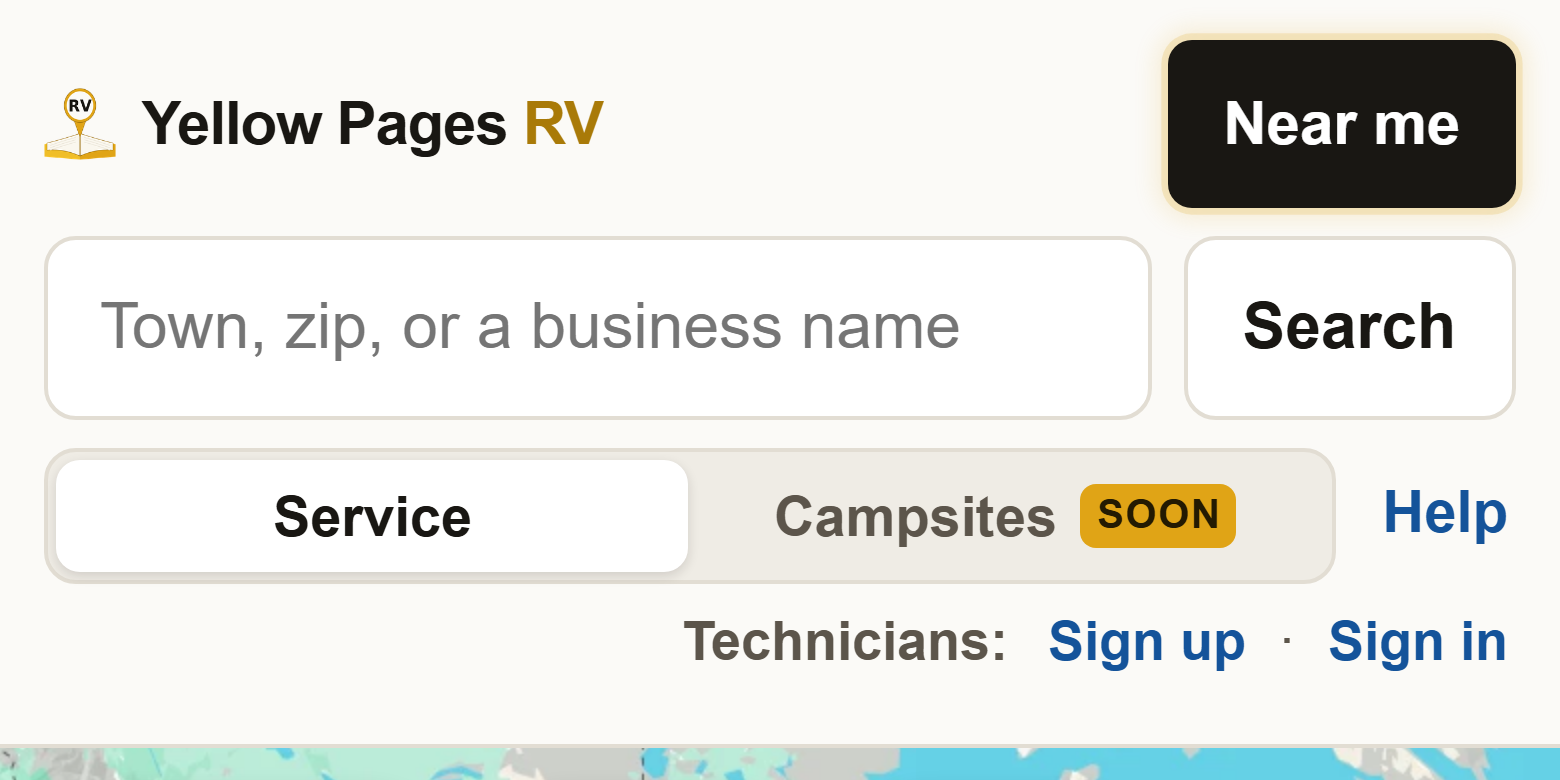
1Go to yellowpagesrv.com and press Sign up. It is in the small line that starts with Technicians, beside Help at the top of the map (just under Help on a phone).
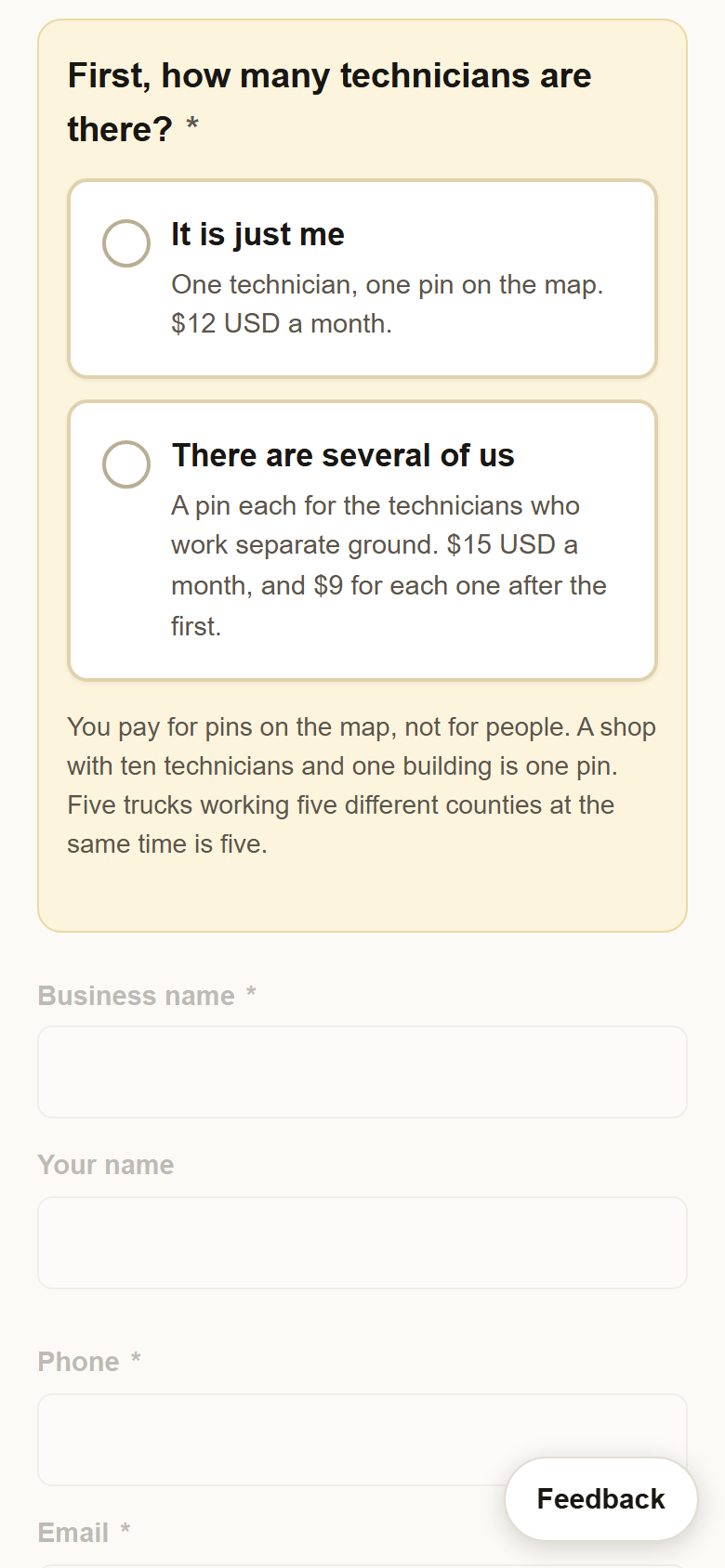
2Say how many technicians there are. Nothing is picked for you. It is just me is one technician and one pin, $12 a month. There are several of us is a pin each for technicians who work separate ground, $15 a month for the first and $9 for each one after, with a counter for how many. You pay for pins on the map, not for people: a shop with ten technicians and one building is one pin.
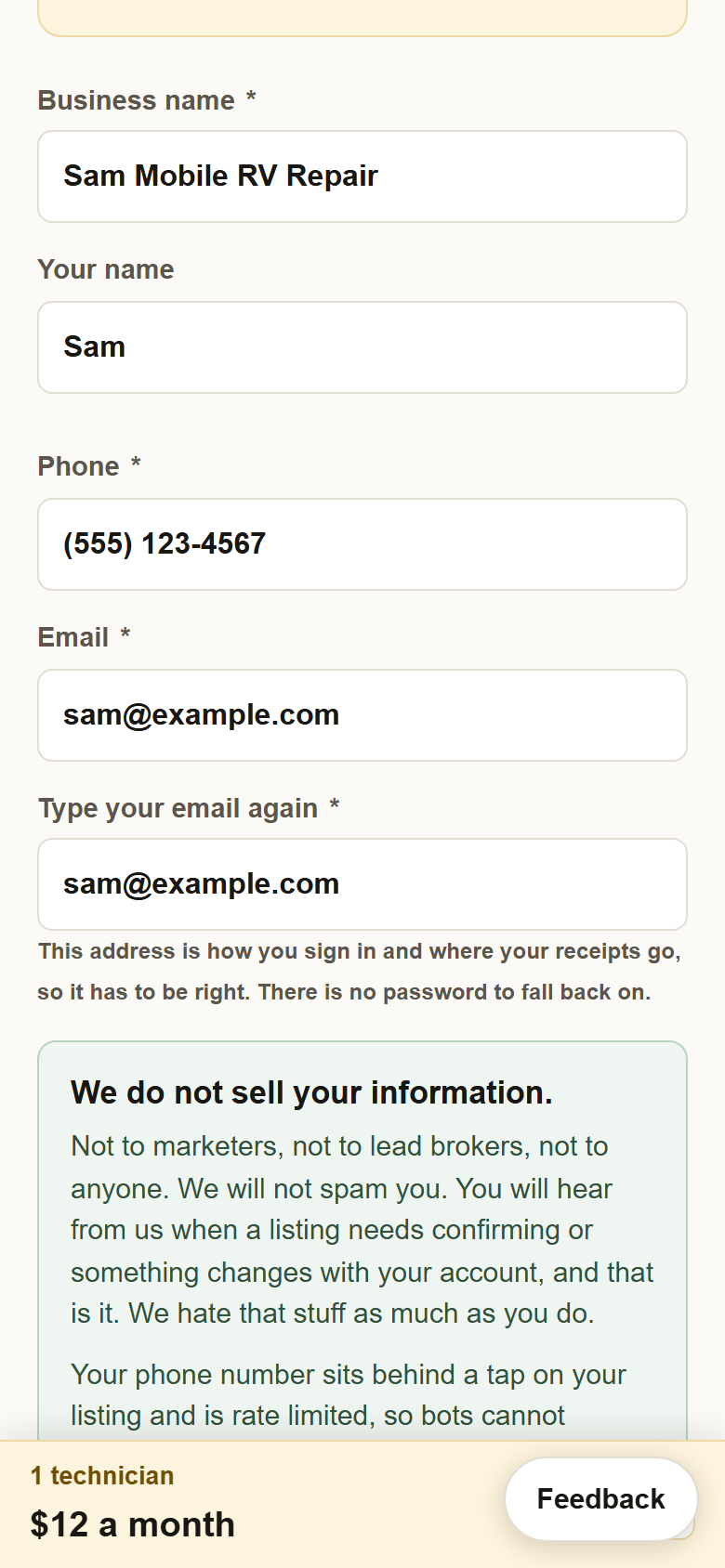
3Your business name, phone and email. Required: business name, phone, email, and the email typed again to match. Optional: your name, and the checkbox to hear about new SkillAbove tools. The email is how you sign in and where your receipts go, and there is no password to fall back on, so it has to be right.
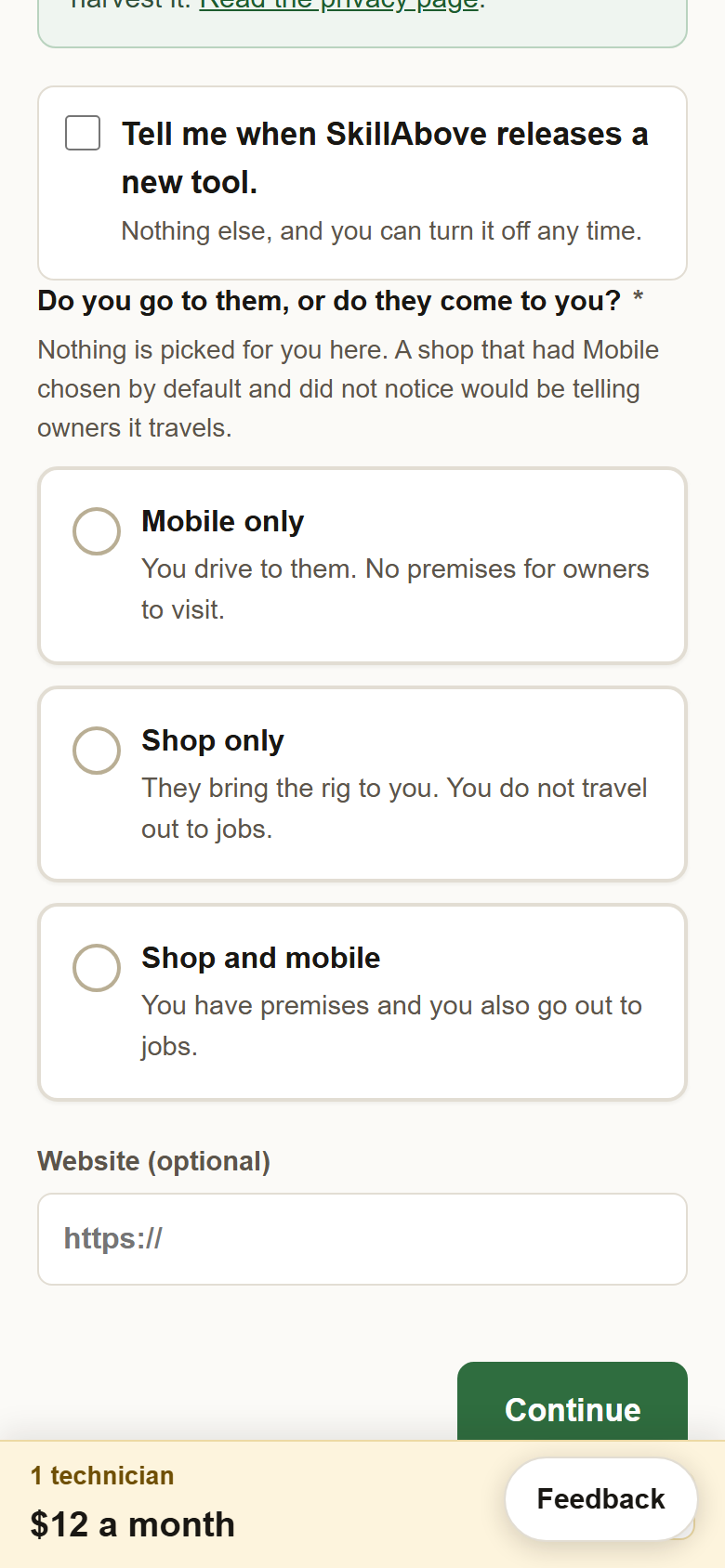
4Do you go to them, or do they come to you? Nothing is picked for you. Mobile, Shop, or Shop and mobile. Either shop choice adds Shop address, City and State, all required, because that is where owners will drive to. Website is optional. If anything required is missing, a red line names it and the page scrolls to it. Continue comes after the next two questions.
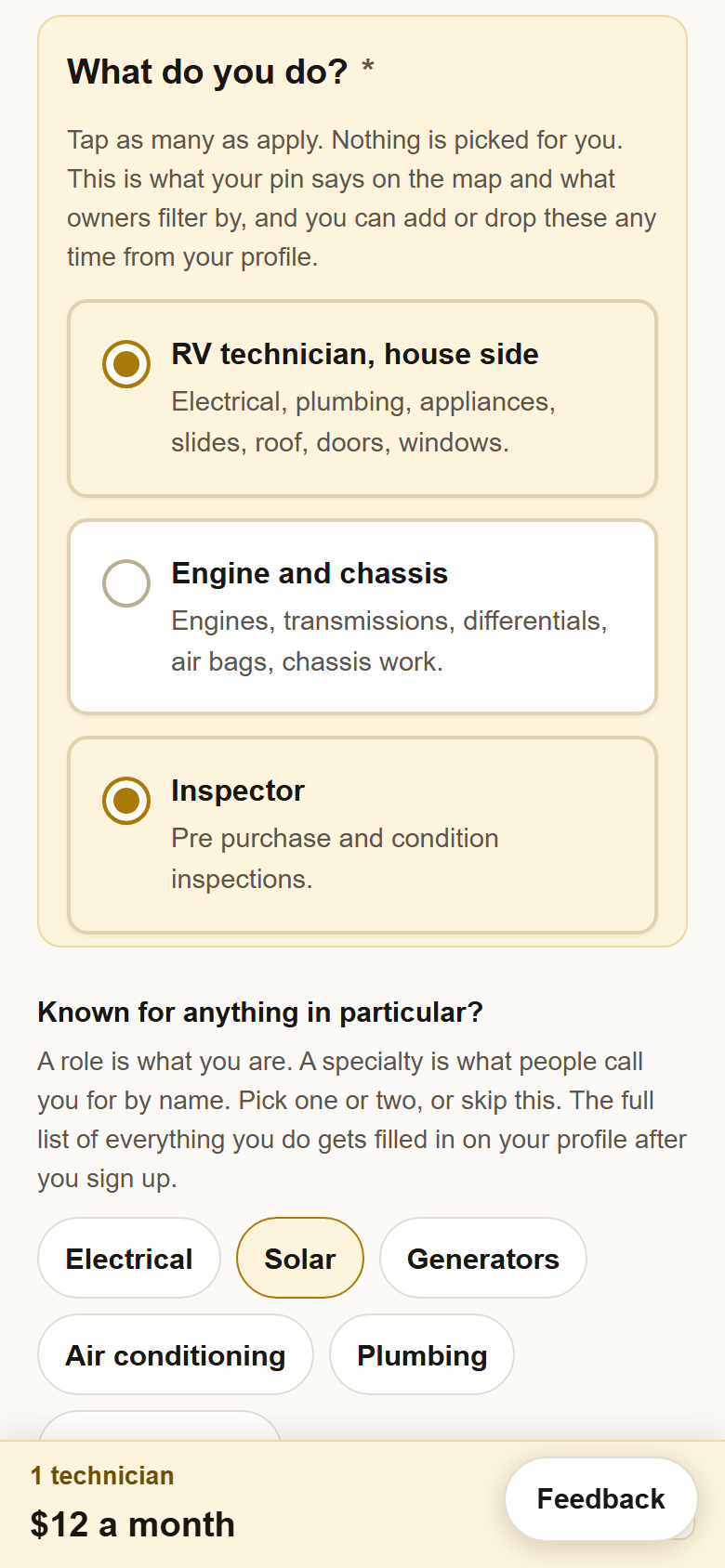
5Say what you do, and what you are known for. What do you do? is required and nothing is picked for you: tap RV technician, house side, Engine and chassis, Inspector, or any two or all three. It is what your pin says on the map and what owners filter by. Under it, Known for anything in particular? offers sixteen specialties. A role is what you are; a specialty is what people call you for by name. Pick one or two, or press Skip, I do a bit of everything. Whatever you pick is already checked on your profile when you first sign in, and the full list of everything you do is filled in there.
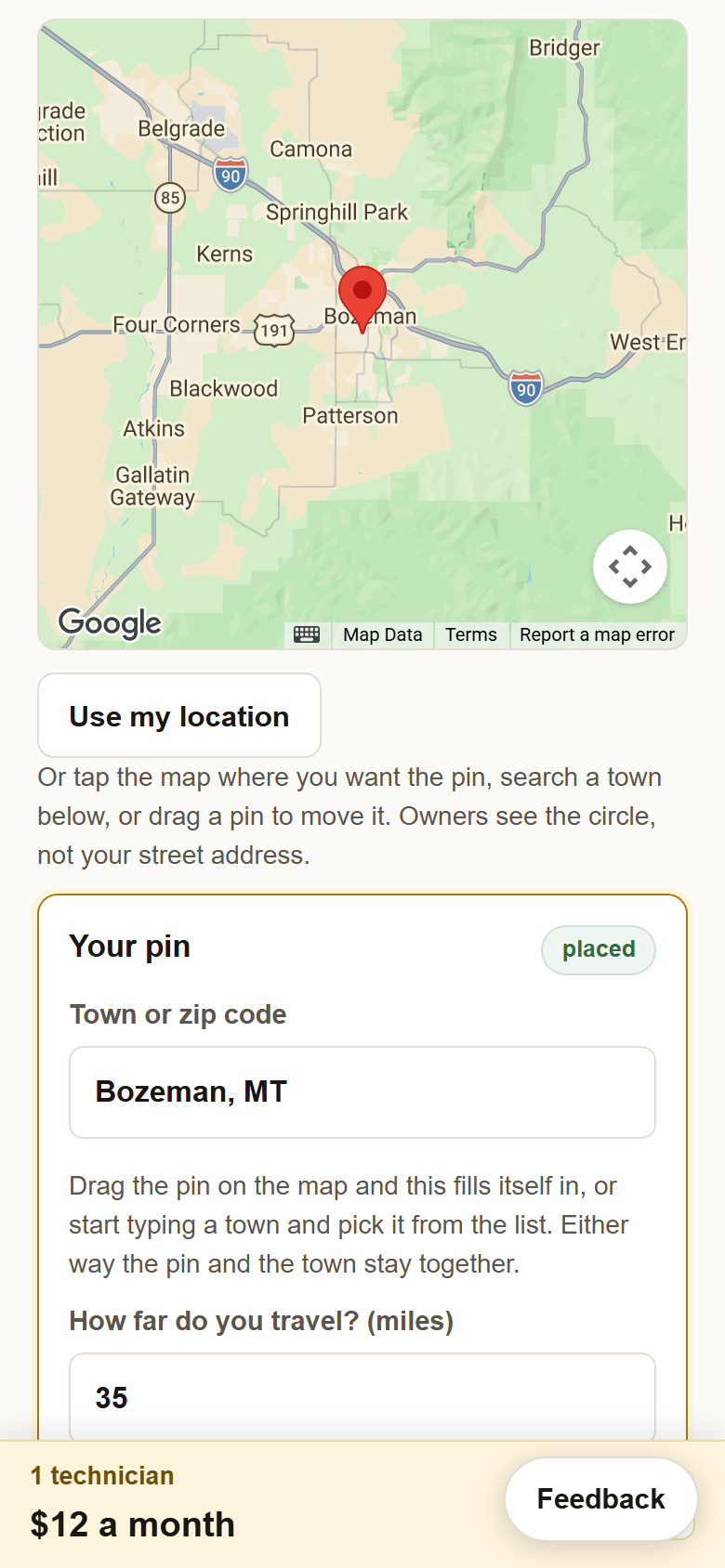
6Put your pin down and say how far you travel. Type your town or zip code and pick it from the list, tap the map, or press Use my location. Dropping the first pin is required. The miles box is your travel circle, and owners see the circle, not your address, so set it to what you actually do. With several technicians, one numbered pin per technician sits above the map; only the first has to be placed now and the rest can wait for your profile. Then Continue.
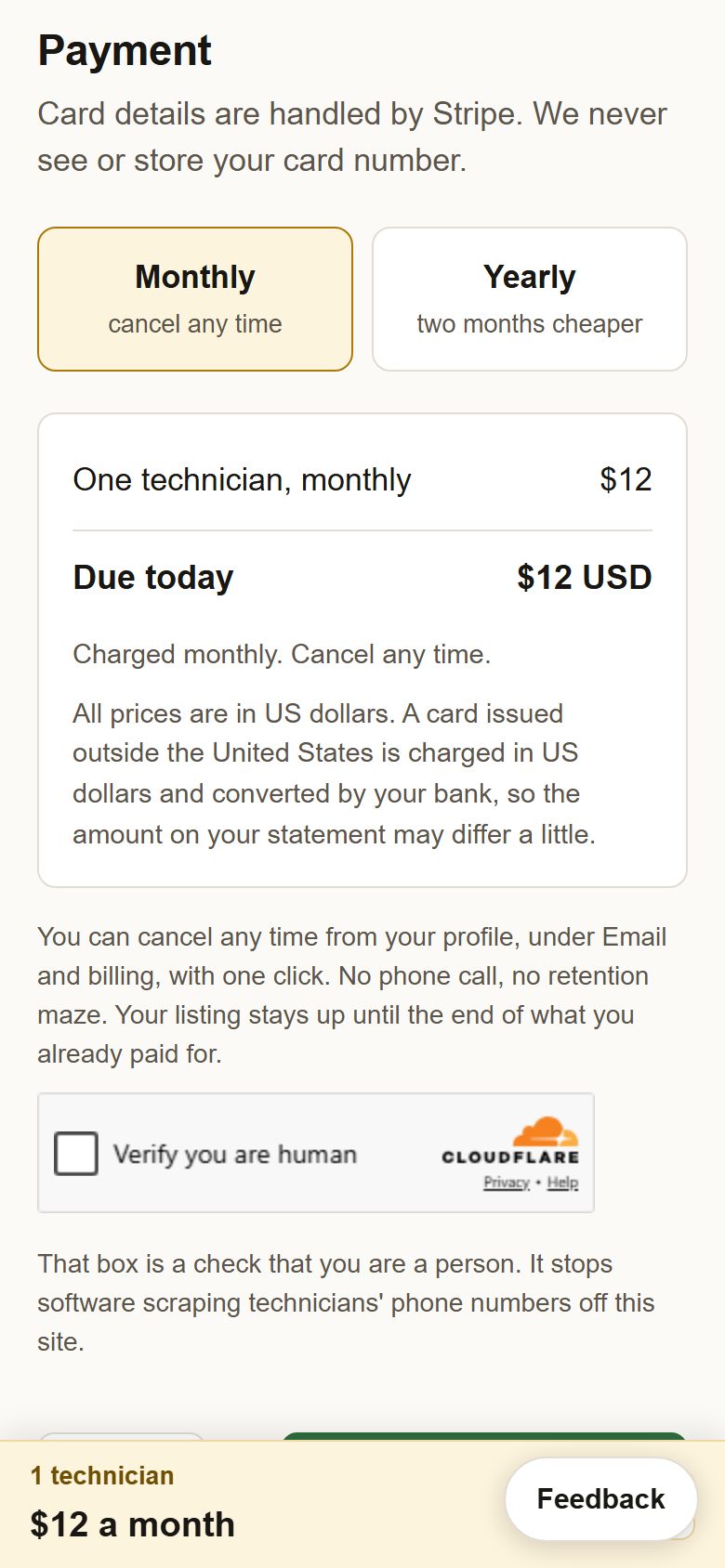
7Pick monthly or yearly, check Verify you are human, and press Continue to payment.
Monthly is preselected. Card details are handled by Stripe and never touch this site.
All prices in US dollars. You can cancel any time from your profile with one click.One technician, monthly $12 a month One technician, yearly $120 a year Several, monthly $15 for the first, $9 a month for each after Several, yearly $150 for the first, $90 a year for each after
8Pay on Stripe's page. Stripe's own checkout opens with your email already filled in. Put in your card and pay. If you back out, you land on the Payment step with your listing saved and nothing charged; pick monthly or yearly and continue. Later than an hour, or on another phone, sign in instead and press Finish paying at the top of your profile. Stripe emails the receipt.
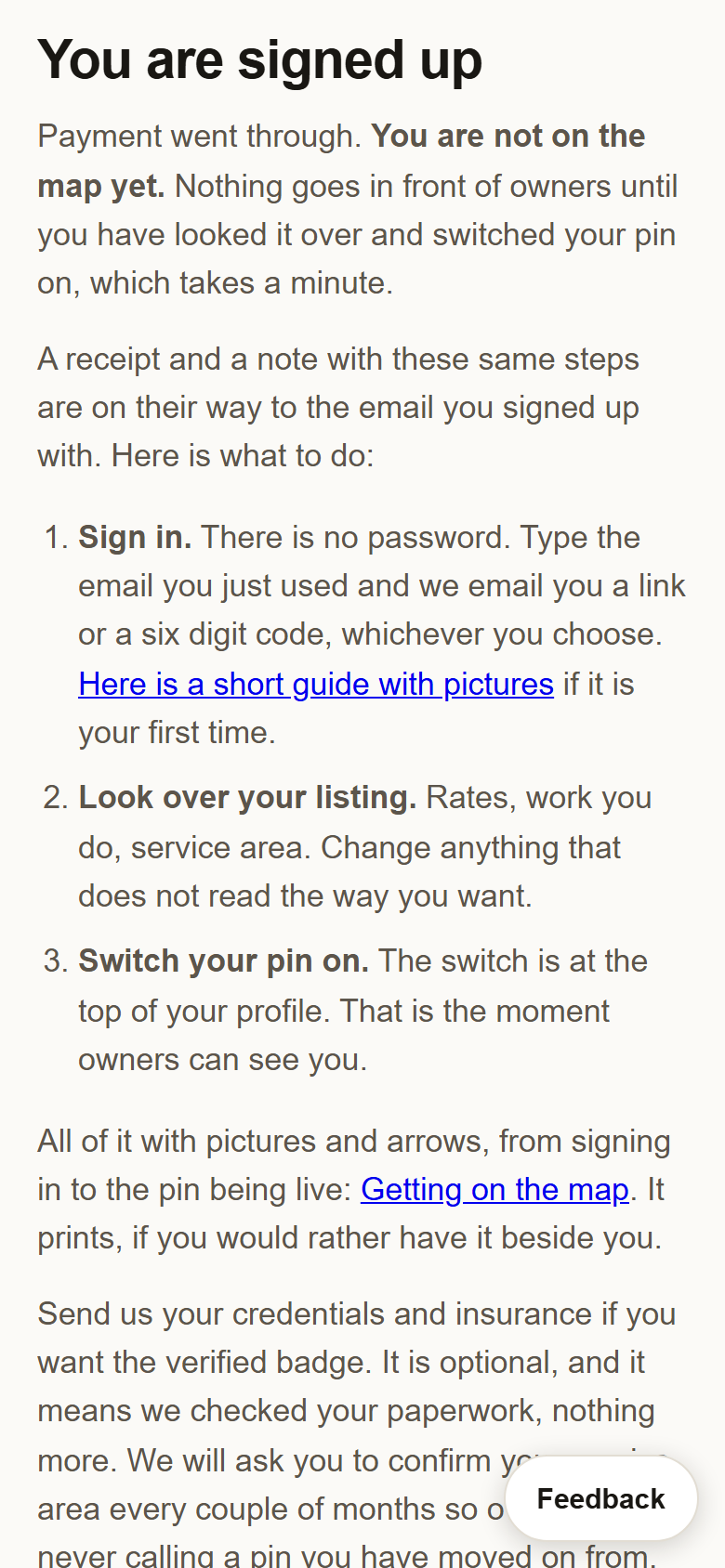
9You land back here. You are signed up, and not on the map yet. This page and the welcome email say the same three things: sign in, look over your listing, switch your pin on. You are not signed in yet. Press Sign in and switch your pin on at the bottom of the page and continue with guide 3.
?Something did not work? If the card was declined, Stripe says so and nothing is charged; try another card. If you paid and never landed back on this site, the payment still counts and the welcome email still comes: go to yellowpagesrv.com and press Sign in. If you think you mistyped your email, write to support@yellowpagesrv.com before doing anything else, because that address is the only way in.
 Yellow Pages