Show owners which days you work and your hours, so somebody deciding who to call knows you are the kind of business that is around. Tap the days, set the times or mark a day by appointment, done.
Your hours show the way your rates do. Every listing says plainly they can be out of date and tells an owner to call to be sure. Put your usual week and let the phone call sort out the rest.
No days and no hours means nothing on your listing and nothing changes for you. Fill it in when you are ready, and change it whenever your week changes.
1Sign in and open your profile. Go to yellowpagesrv.com, press Sign in beside Help at the top of the map, then either the green Face ID or fingerprint button if you have set a passkey up, or type the email you signed up with and use the code or link that arrives. You land on your profile.
2Find When you work, and tap the days you work. It is its own card, just below What you charge. Tap a day and it fills in green; tap it again to turn it off. Under each day you turn on, choose Set hours (an Open and a Close time) or By appointment.
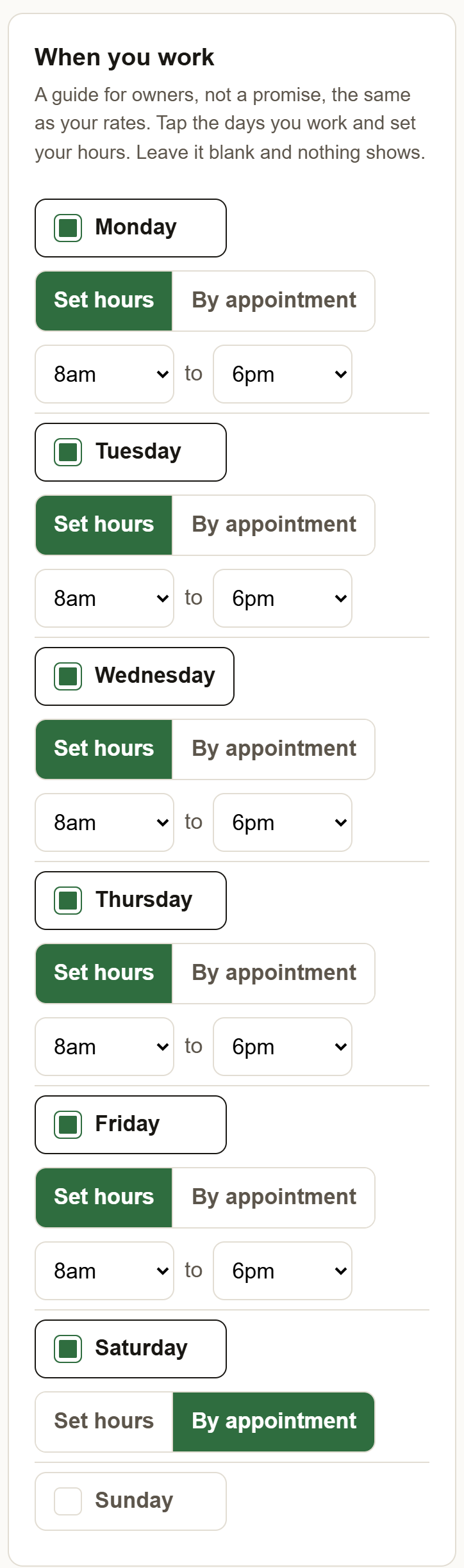
3Set the hours, and let the next day borrow them. Pick your Open and Close on the first day you turn on. Every day you turn on after that starts with the last hours you set, so a plain week is a few taps: set Monday, then tap Tuesday through Friday and they come out the same. A day that runs different hours, like a late Thursday or a short Friday, just gets its own Open and Close, and the others stay as they are.
4A day you take by appointment? Say so without hours. Whenever a day is on, you choose between Set hours and By appointment. Tap By appointment and the times go away: your listing shows you are around that day without giving hours, which suits a Saturday you keep for booked jobs or a day you come out only if somebody calls ahead. The other days keep their hours.
5A day you do not work: leave it off. An empty day is a day off. It shows no times here and does not appear on your listing at all. Turn off a day you have stopped working and it drops off the same way.
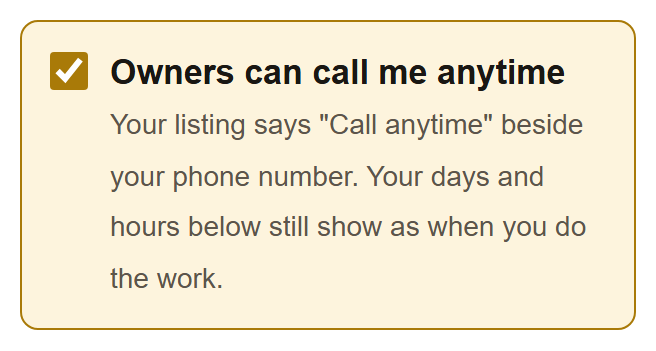
6Take calls at any hour? Check Owners can call me anytime. It is the box at the top of the card. Your listing then says Call anytime beside your phone number, so an owner does not hold off calling early or late. Your days and hours still show as when you do the work.
7An after-hours fee goes with your rates. If you charge extra for after-hours or emergency calls, that is a checkbox and a fee up in What you charge, not here, because it is another thing an owner pays before any work starts. There is more on it in Setting your rates, the guide just before this one.
8Press Save changes. Your days and hours are on your listing and your page from that moment. Change them whenever your week changes; every save shows right away.
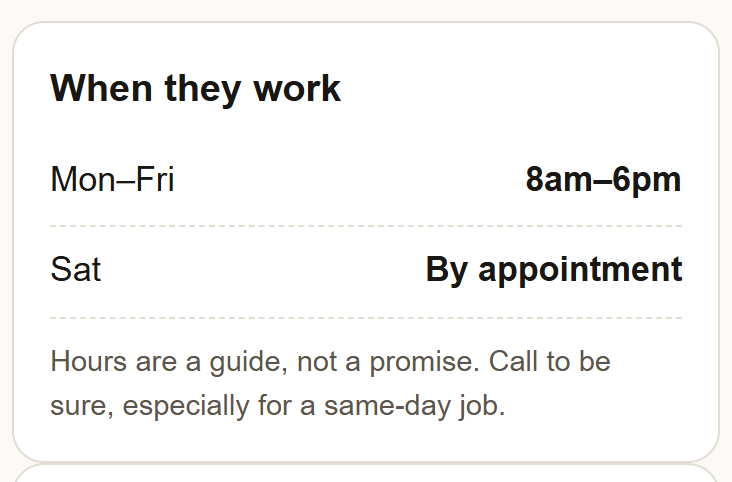
9This is what owners see on your listing. Under When they work, your days grouped by their hours. Days in a row that share the same hours read as a range, so Monday to Friday at the same times reads "Mon–Fri 8am–6pm", and a Saturday by appointment sits on its own line as "Sat By appointment". Under it, the line "Hours are a guide, not a promise. Call to be sure, especially for a same-day job". If you checked Owners can call me anytime, Call anytime sits under your call button and Calls Anytime is the first line.
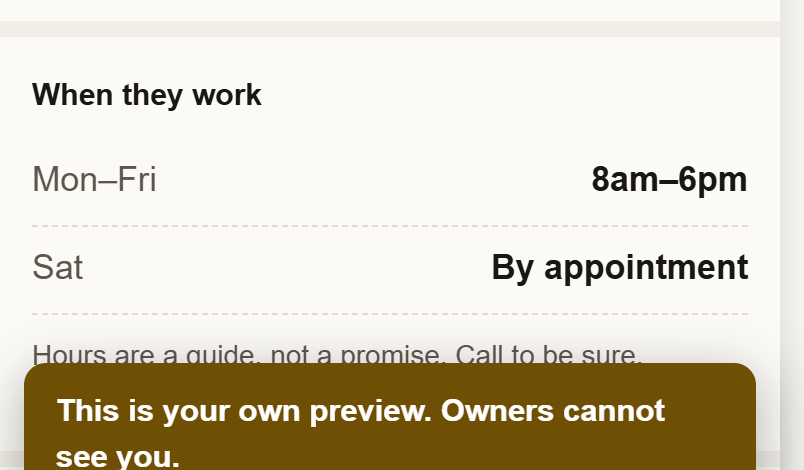
10And on your page. A When they work card in the same words, in the column beside your rates. It reads the same as the card, so somebody who lands on your page sees the same grouped days and the same reminder to call.
?Not sure what to put? Put your usual week. Owners are not holding you to the minute; they are checking whether somebody is likely to be around when they need one, and a listing that says so gets the call over one that does not. Your normal days and hours are worth stating, and the line on every listing says the rest is a phone call away.
 Yellow Pages