One touch with your face or fingerprint. Or your email, with a link or a code. No password either way.
Nobody has to remember one. The most you have to remember is the email address you signed up with, and once a passkey is set up you do not even type that.
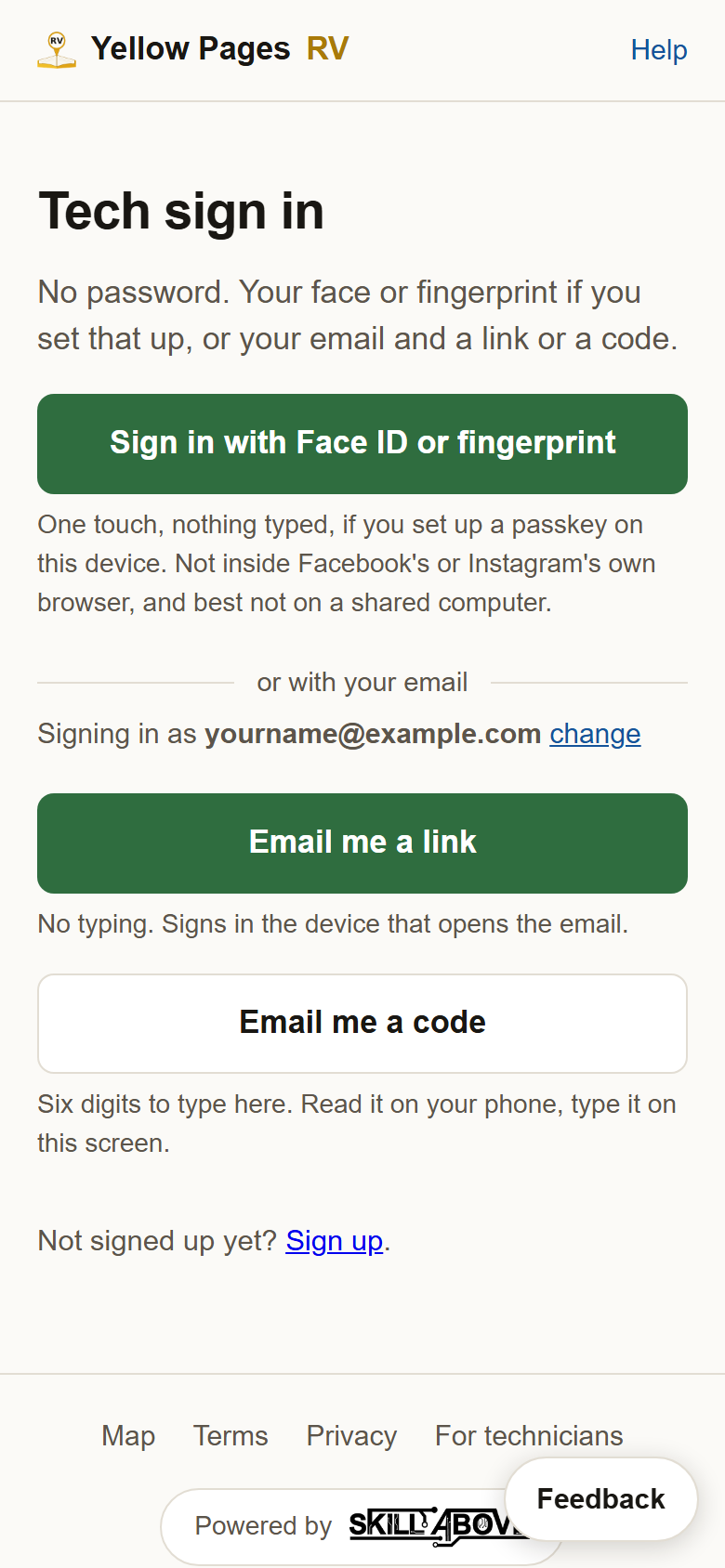
A passkey is the fast one: press the green button, approve with your face or fingerprint, and you are in. It has to be set up once on each phone or computer, which takes ten seconds and is in step 3. The email link needs no typing but signs in whichever device opens the email. The code can be read on your phone and typed on a computer.
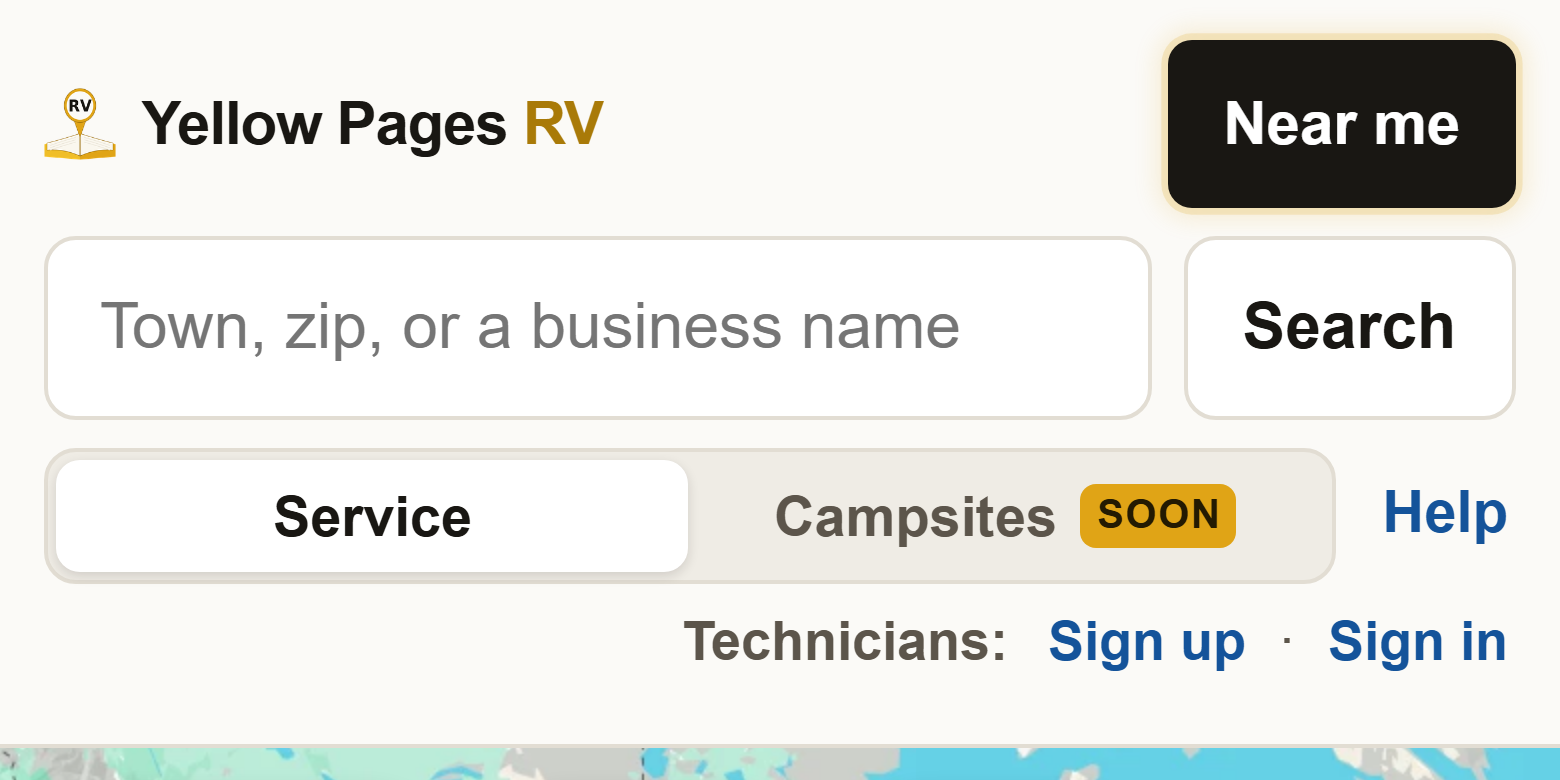
1Go to yellowpagesrv.com and press Sign in. It is in the small line that starts with Technicians, beside Help at the top of the map (just under Help on a phone).
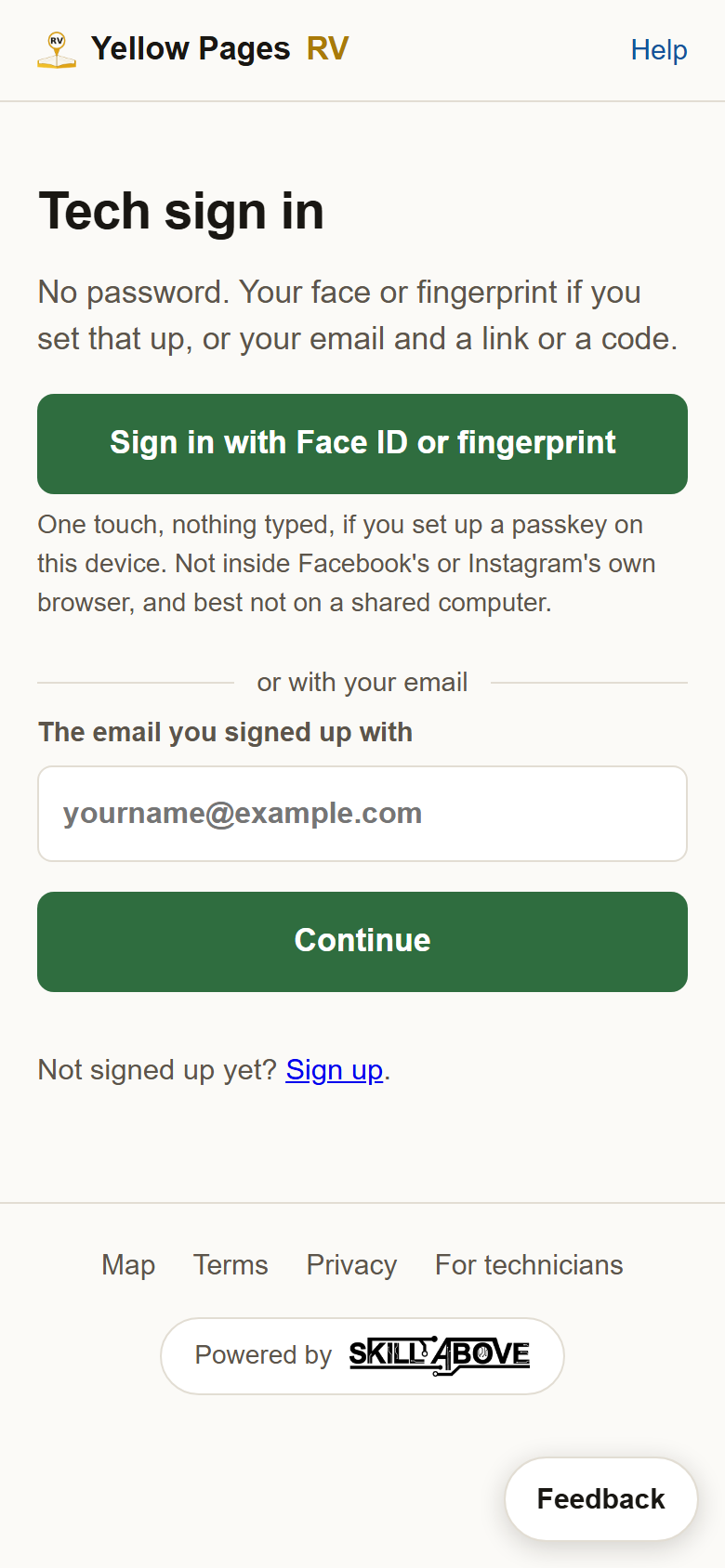
2Press Sign in with Face ID or fingerprint. Your phone or computer puts up its own sheet and asks for whatever unlocks it: your face, a fingerprint, or its PIN. Approve it and you land on your profile. Nothing typed. This works once a passkey is set up on that device, which is the next step. Before that, the button says nothing is on file and the email ways below get you in.
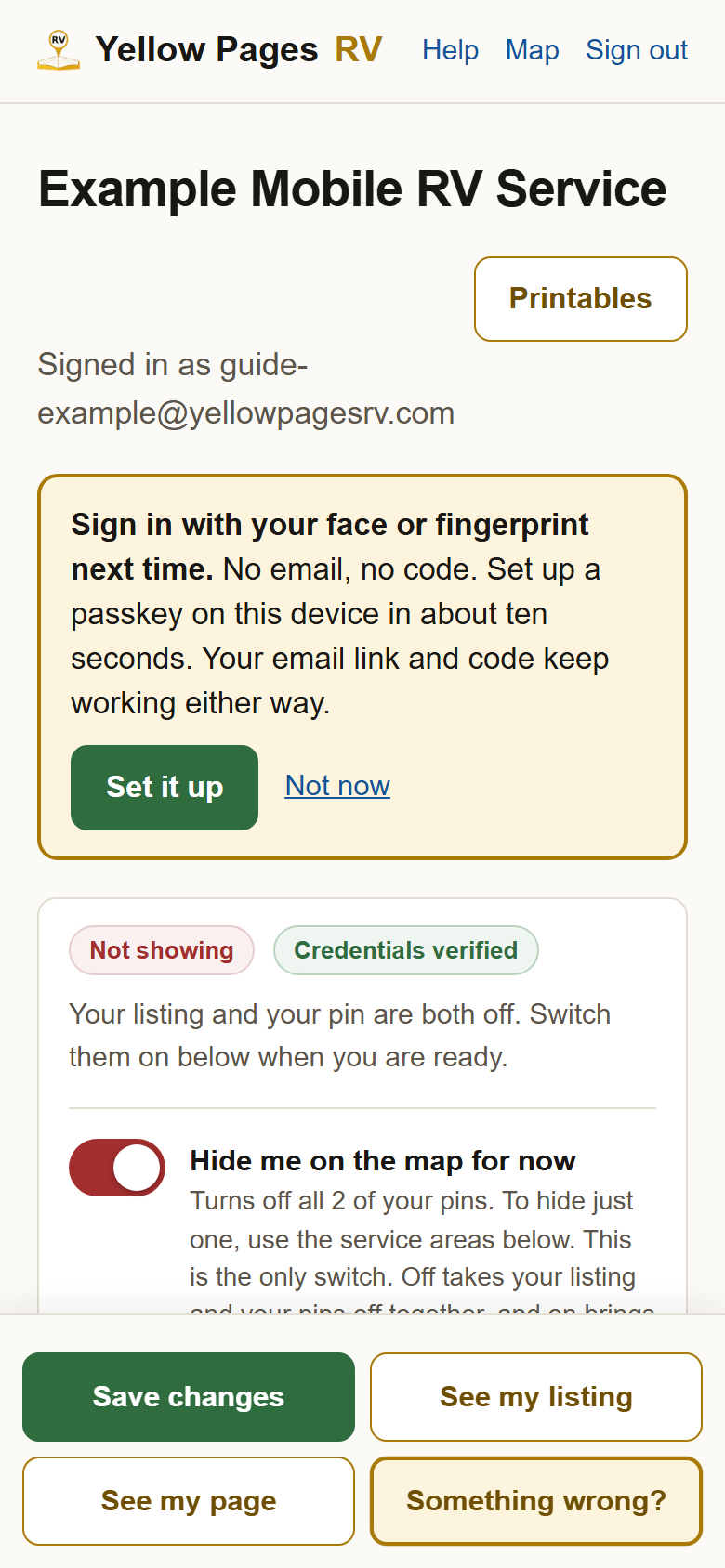
3Setting a passkey up: once, on each phone or computer you use. Sign in with your email the first time, steps 5 to 9 below. At the top of your profile a box offers it: press Set it up, approve with your face or fingerprint, and it says Done. From then on the green button in step 2 is all you need on that device. Not now closes the offer, and it does not come back once you have said so; you can still add one any time from the Passkeys card in step 4.
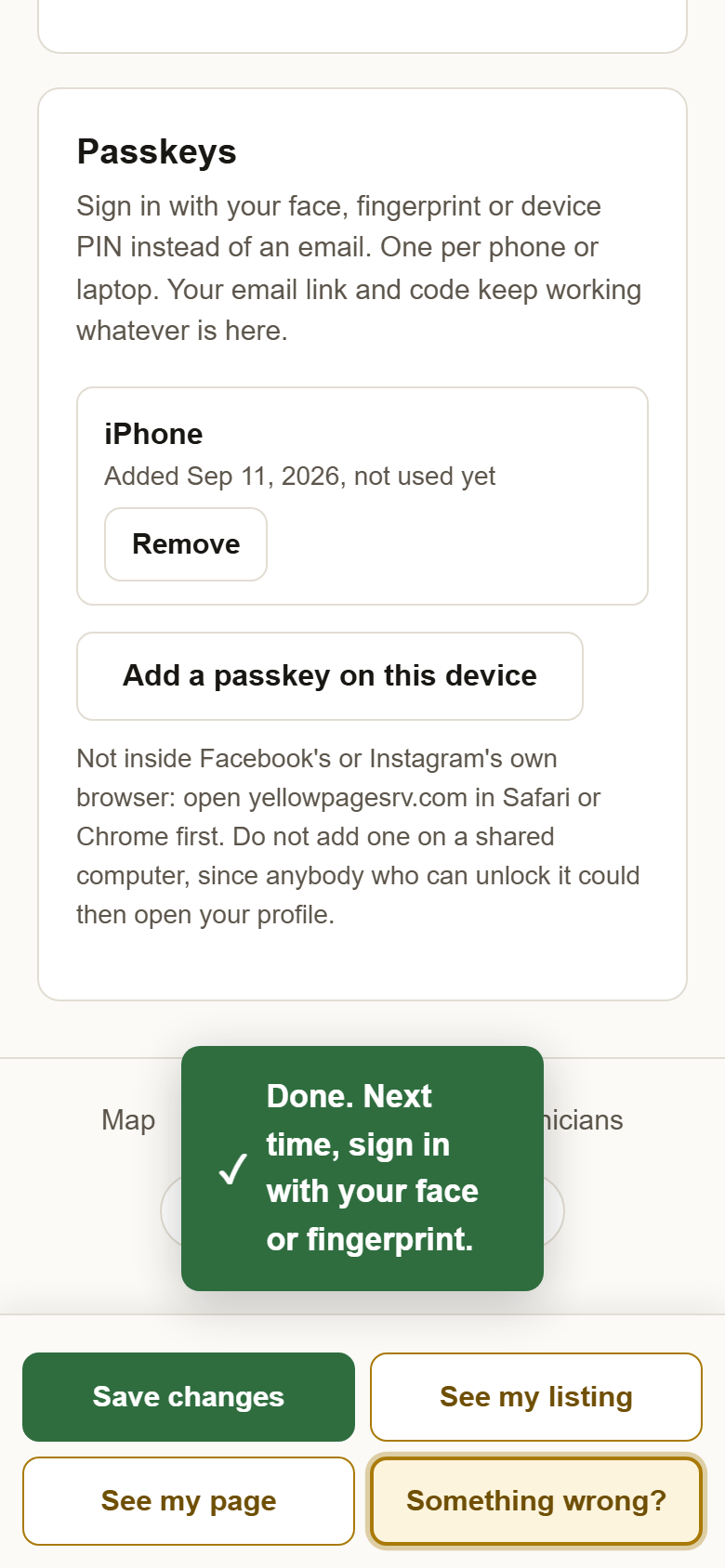
4The Passkeys card, under Email and billing on your profile. Each passkey is listed by the device it lives on, with Remove beside it, and Add a passkey on this device underneath. Three things worth knowing. It works in any browser, Safari or Chrome, with nothing saved to your home screen; the one place it does not work is inside Facebook's or Instagram's own browser, so open yellowpagesrv.com in Safari or Chrome first. Do not set one up on a shared computer, because anybody who can unlock that computer could then open your profile. And your email link and code keep working whatever is on this card, so if a phone is lost you sign in by email and press Remove on that phone's passkey.
5Or with your email: type the address you signed up with, then press Continue. The same one your receipts come to. This is the way in before a passkey exists, and the way in from any device that does not have one.
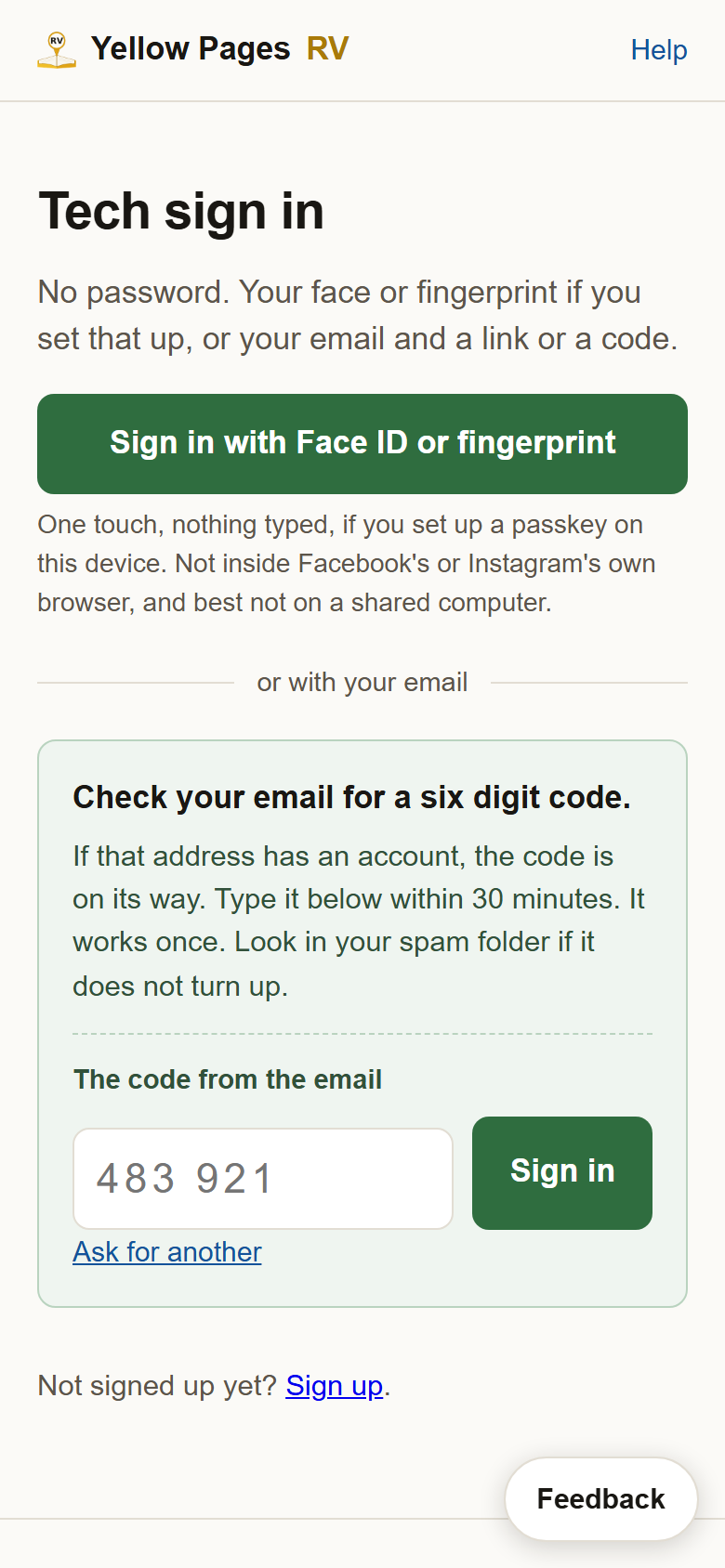
6Pick a link or a code. Email me a link if you will open the email on this same device. Email me a code if your email is on your phone and you are signing in on a computer.
7Open the email. It carries what you asked for: the code, or the link, never both. It works once and stops working after 30 minutes. If it does not appear in a minute, look in junk or spam.
8If you chose the code: type it and press Sign in. Read it off your phone, type it on the screen you are signing in on. Then you are in.
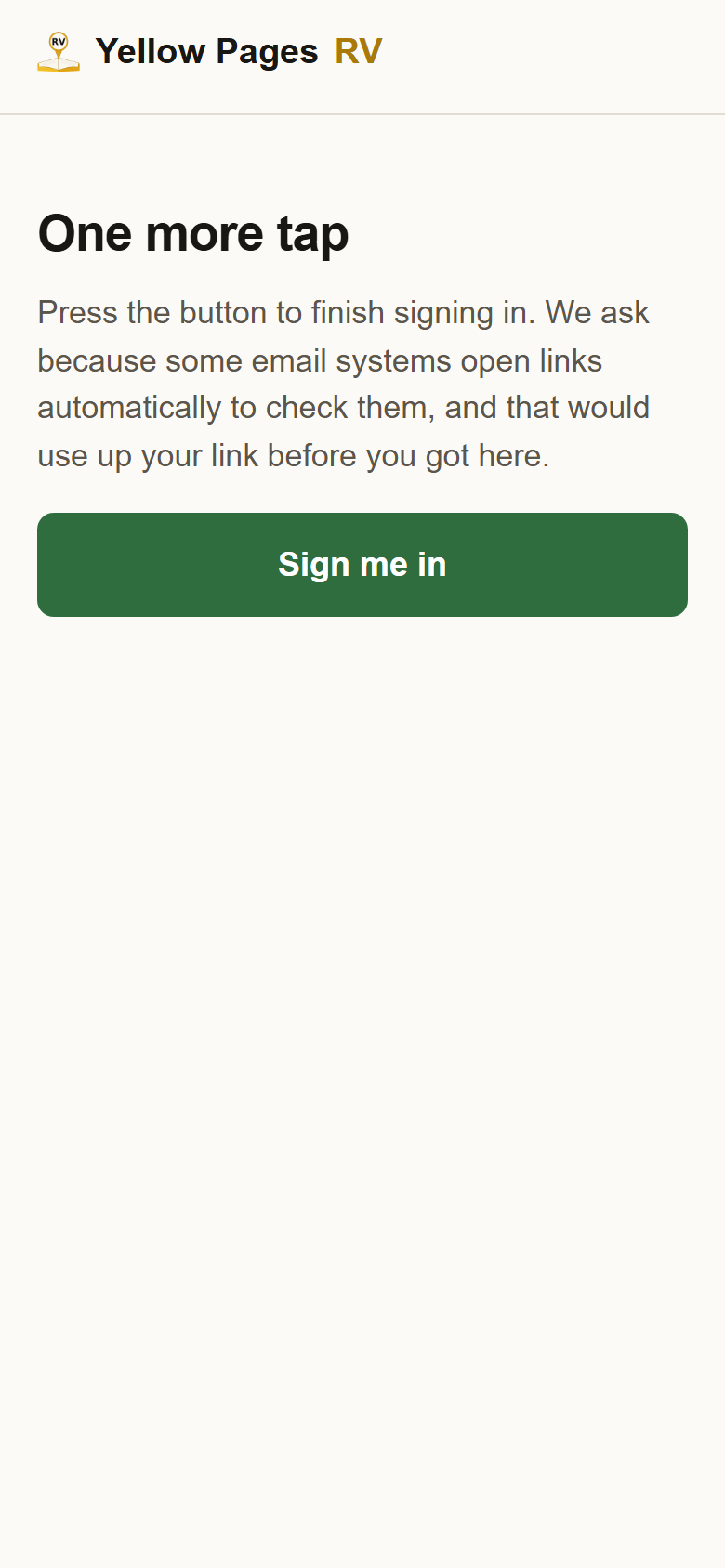
9If you chose the link: press it, then press Sign me in. Your email has a green Sign me in button instead of a code. Press it, and the page it opens asks for one more press, on that same device.
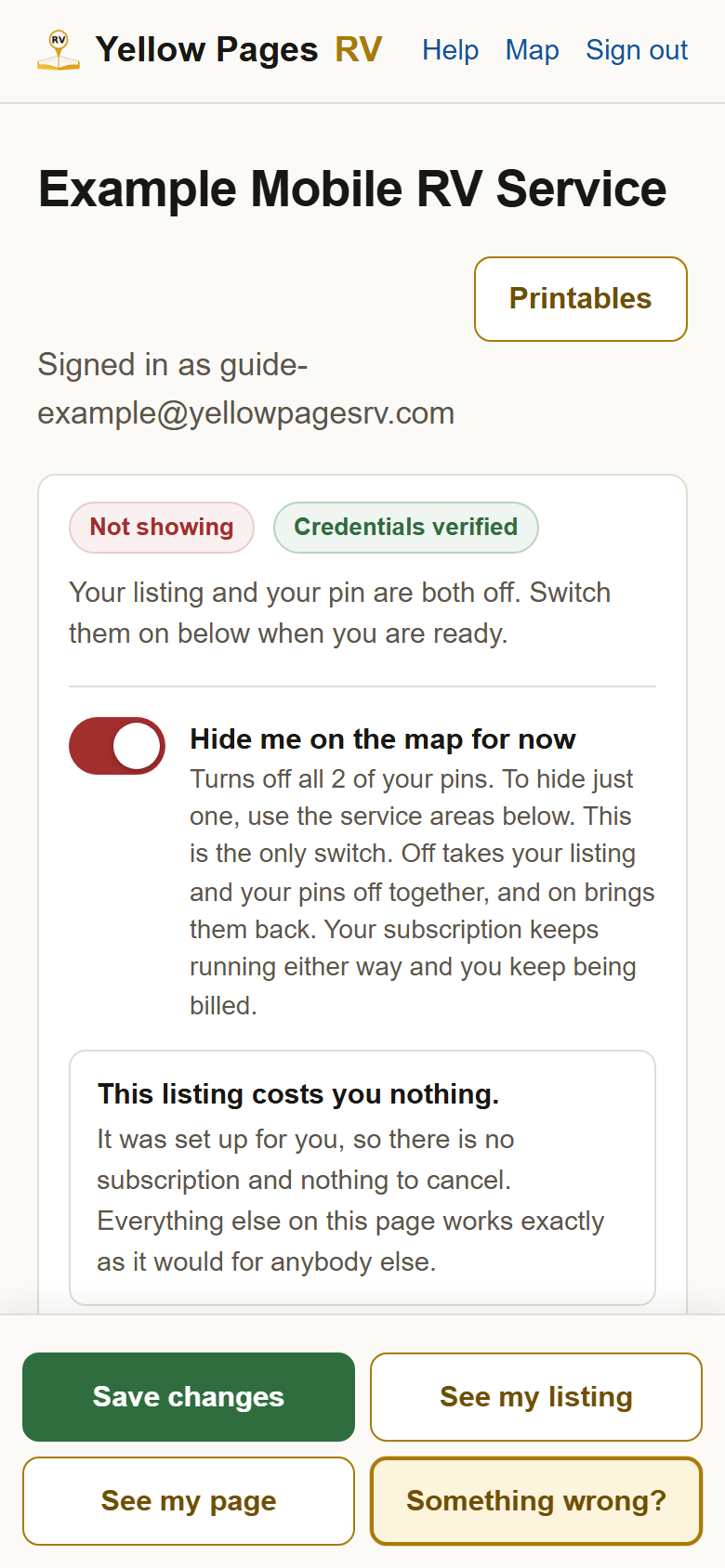
10You are in. This is your profile. You stay signed in on this device for 30 days, whichever way you came in. Sign out is at the top right here, and beside My listing at the top of the map.
?Still stuck? Ask for another. Nothing bad happens if you ask twice. If your email system will not let you press the link, the code gets around that. If the green button says nothing is on file, that device has no passkey yet: sign in by email and set one up. If none of it will come, write to support@yellowpagesrv.com and a person will get you in.
 Yellow Pages