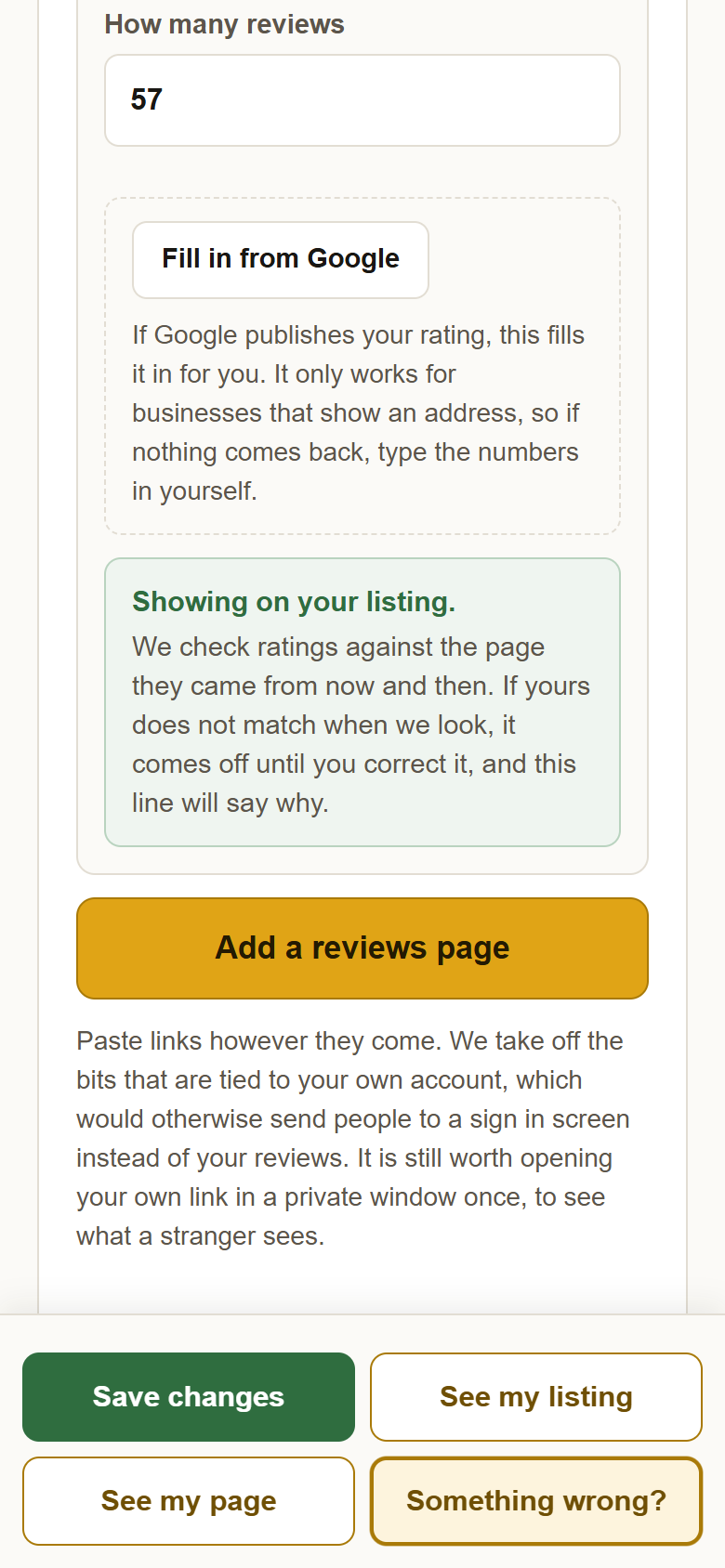
Paste the link to your reviews, tell us the numbers, and your rating is on your listing the moment you save.
Somebody here checks ratings against the page they came from now and then. If yours does not match when we look, the numbers come off until you correct them, and your profile tells you why.
It works when Google publishes a rating for your business, which it does for a business with a street address and usually not for a hidden-address mobile business.
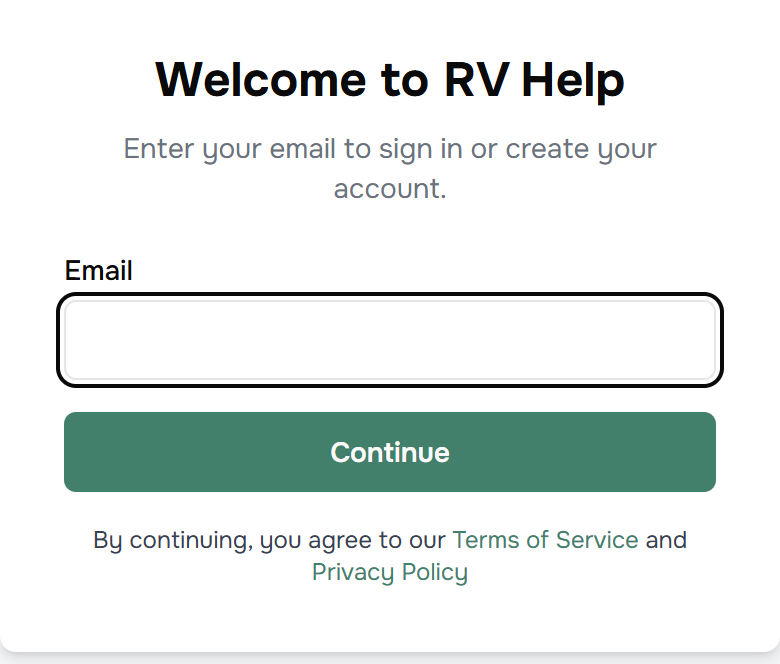
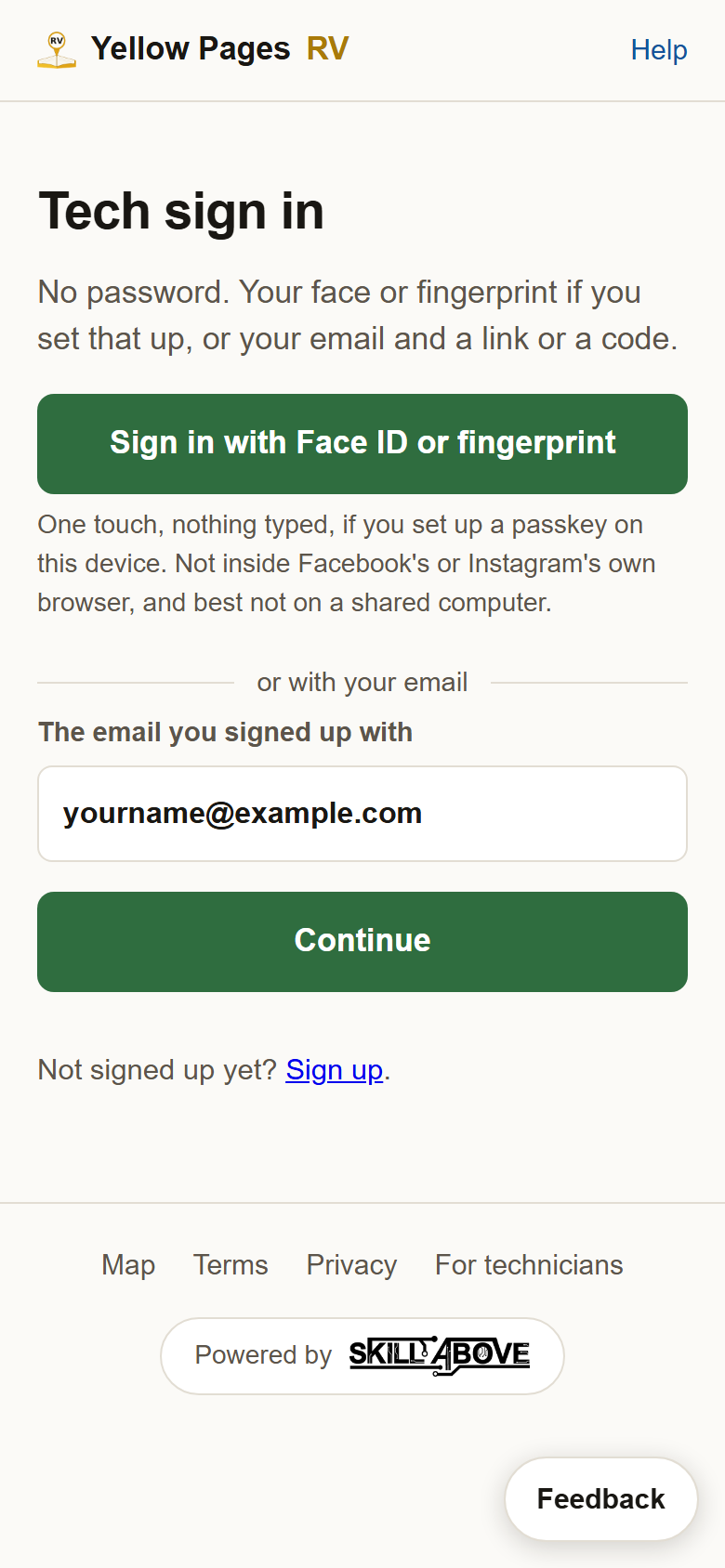
1Sign in and open your profile. Go to yellowpagesrv.com, press Sign in at the top right, then either the green Face ID or fingerprint button if you have set a passkey up, or type the email you signed up with and use the code or link that arrives. You land on your profile.
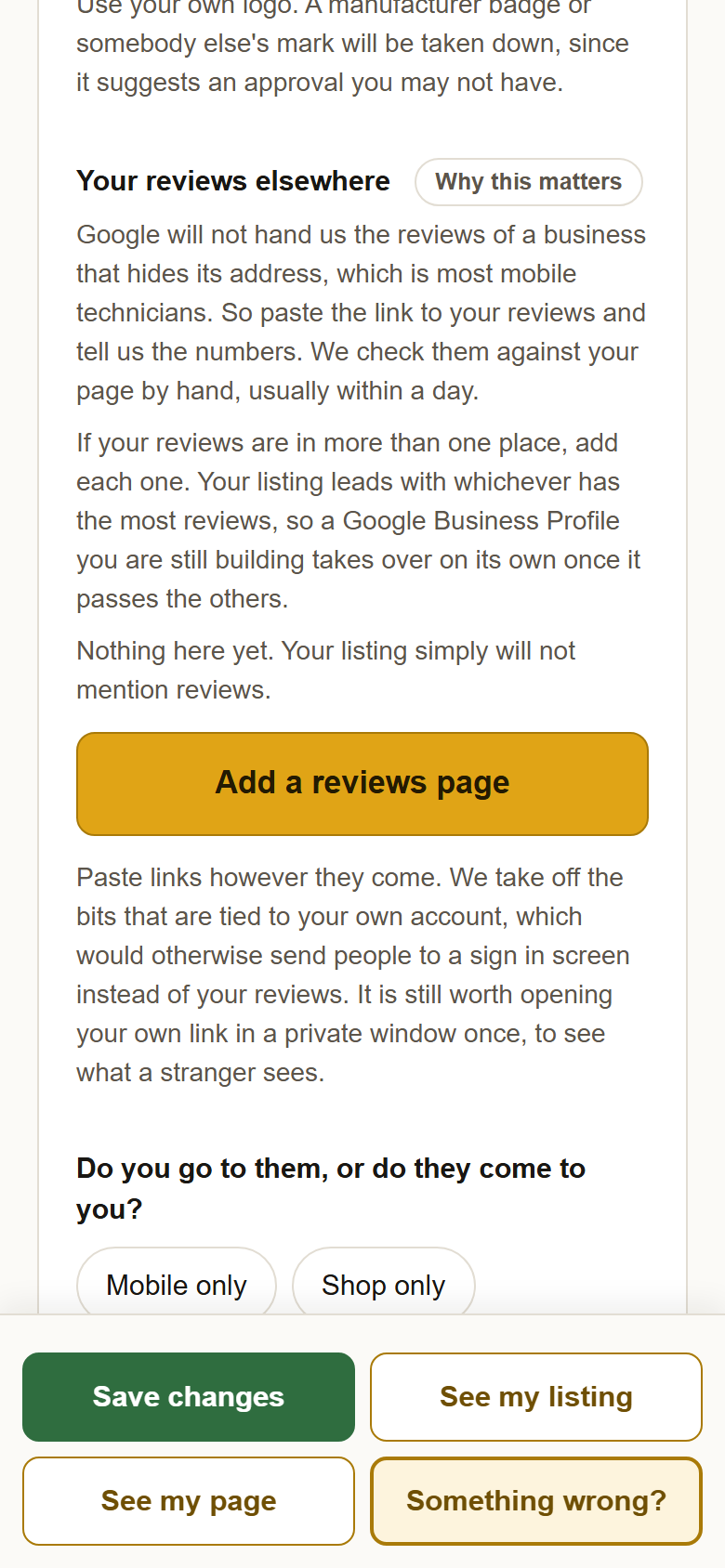
2Find Your reviews elsewhere and press Add a reviews page. It is in the first card, Your name and badges, below the logo box: about halfway down the first card, above the role ticks.
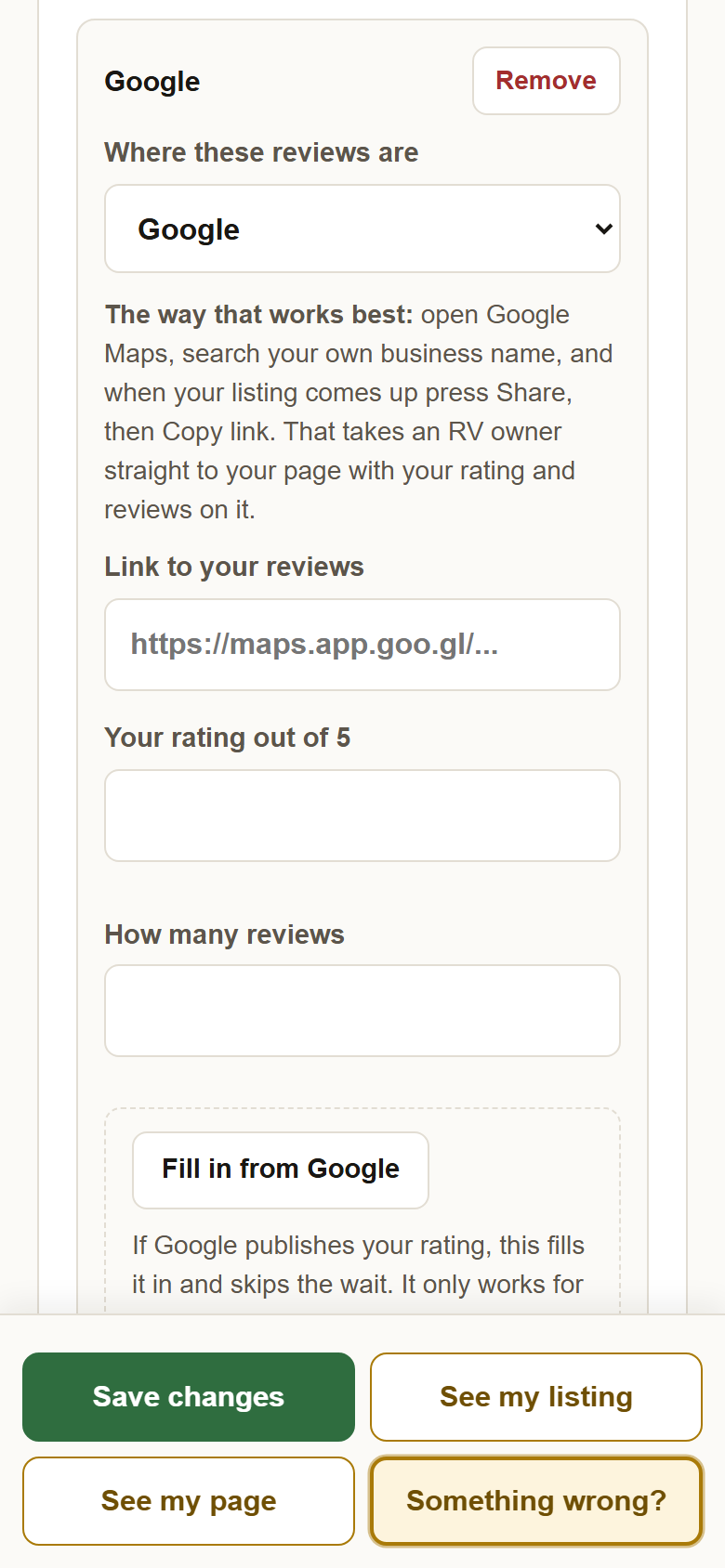
3Choose where the reviews are. A card appears. Where these reviews are is a dropdown: Google, Facebook, or Somewhere else. Google is preselected. The how-to line under it changes with your choice. Up to three review pages are kept.
4Not Google or Facebook? Name it. Pick Somewhere else and a box appears, What is it called? Type the name people know the site by, like RVHelp, Yelp or Bing. That name shows on your listing right next to the stars, so write it the way it reads on the site itself. Google and Facebook name themselves and have no box.
5RVHelp: your public page, not the dashboard link. On RVHelp, when you are signed in, the link at the top of your reviews and the QR code both look right, but they send everybody else to a login screen or a review form, not your reviews. The page anyone can open is your public one, at rvhelp.com/providers/ then your business name in lowercase with dashes, like rvhelp.com/providers/your-business-name. Your name on RVHelp may carry an LLC or Inc that ours does not, so if the plain name does not open, put it on the end and try again. Open it in a private browser window, where you are not signed in. If it shows your reviews without asking you to log in, that is the one to paste.
6Every page you add shows, added together. You can keep up to three review pages, and all of them show now, not just the one with the most reviews. On your row in the results they combine into one line, like 4.9 from 214 reviews across 3 places, with the rating weighted by how many reviews each page has. On your card and your page every place is also listed on its own, with its name, its stars, its count and a link, so somebody can open any of them.
7Get the link the way that works best. Google: open Google Maps, search your own business name, and when your listing comes up press Share, then Copy link. Facebook: open your Facebook business page, go to the Reviews or Recommendations tab, and copy the address from the bar at the top. Your page has to be public and have recommendations turned on. Any address beginning with https:// is accepted. The account and tracking parts Google and Facebook hang on a link are removed when you save, so an owner clicking it is not sent to a sign in screen. The one refusal is a link that does not start with https, and the save then fails with this message at the bottom of the page: "Each reviews link needs to start with https://".
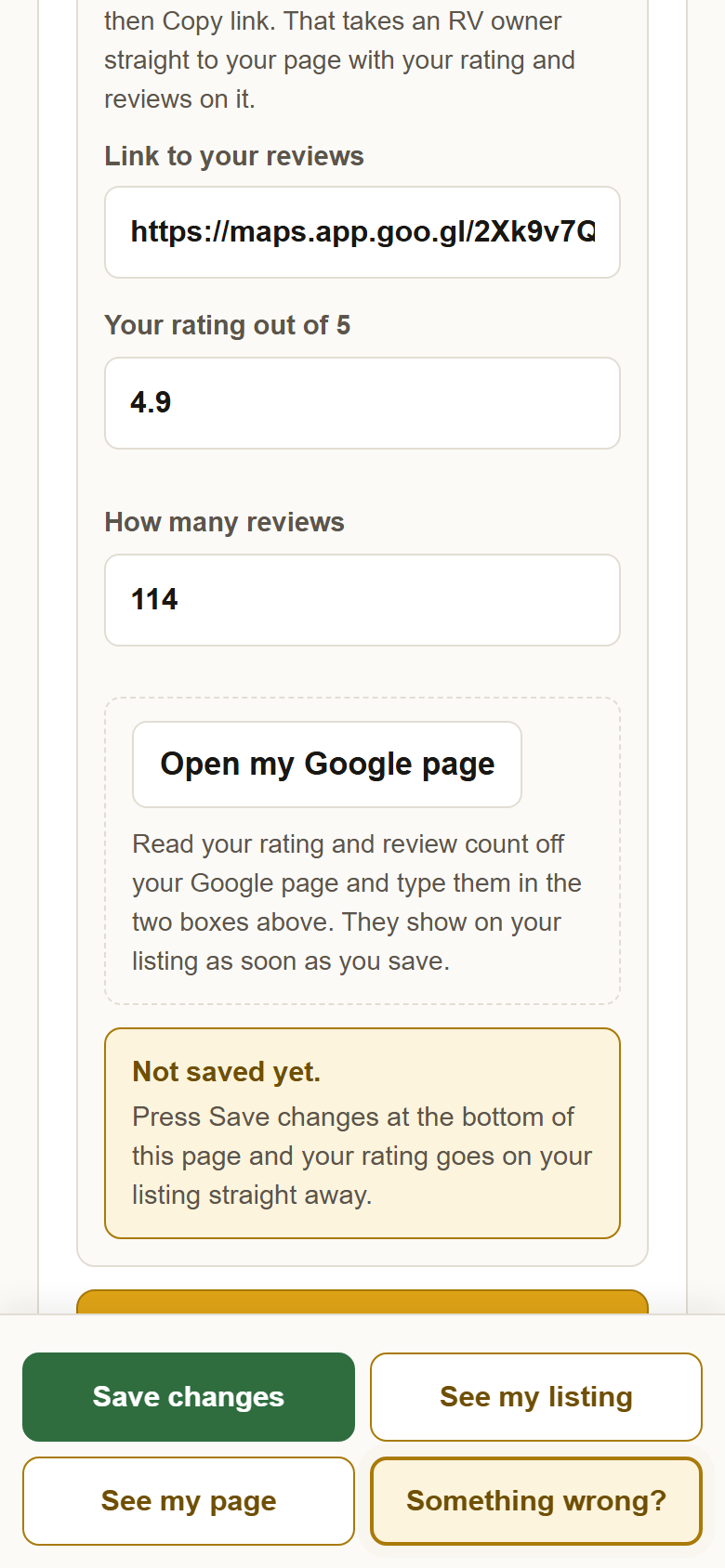
8Paste the link and type your rating and review count. Link to your reviews, then Your rating out of 5 and How many reviews, read off your Google or Facebook page. Two decimal places are fine for the rating. The dashed box is the Fill in from Google button, which is the next step.
9Google only: press Fill in from Google.
It takes a Google Maps link, a Google short link, a g.page link, or a Place ID, and nothing else. What it says:
10Press Save changes. The card's status line becomes: "Showing on your listing." That is the whole of it. The map, your row and your page all show the rating and count from that moment. Editing the link or the numbers later is fine; save again and the new numbers show.
11What we do afterwards. Somebody here opens your page and checks the numbers against it now and then. There is no schedule and we do not promise one. If they match, nothing changes for you beyond the line saying when we looked. If they do not match, the numbers come off your listing, the link stays, and the status line says what we saw, in the reviewer's own words. Correct the numbers, save, and they show again. Your rating changes as reviews come in, so keep it current yourself rather than waiting on us.
12An unverified Google Business Profile. The link works and the rating shows whether or not the profile is verified, because what matters is what is visibly on your Google page. Fill in from Google works when Google publishes a rating for the place, which it does for a business with a street address and usually not for a hidden-address mobile business.
?Still stuck? Open your own link in a private window once, to see what a stranger sees. If it lands on a sign in screen, get the link again with Share, Copy link. If your rating does not show after you save, write to support@yellowpagesrv.com and a person will look.